For Vehicle Owners
This guide is for vehicle owners / customers who want to access the data from their own vehicle - either on demand via the REST API or in real time via MQTT streaming.
Who this is for
You own (or are the primary user of) a connected Jaguar or Land Rover vehicle and want programmatic access to its data for your own use. You will create credentials in the customer portal, authenticate as yourself, and access only the vehicles mapped to your account.
What you can do
| Solution | Auth flow | DPoP? |
|---|---|---|
| REST API | Authorization Code (browser) or Device Code (constrained device) | Yes |
| MQTT streaming | Client Credentials | No |
Prerequisites
- A connected vehicle mapped to your account (you are the primary user).
- An active connected-services contract for that vehicle.
Step 1: Create your credentials in the portal
Sign in to the customer portal and create a client. Creating a client walks you
through configuring exactly what it may access and how it authenticates - there are
no scopes to request later, and no client secret. This generates a unique
client_id you will use for authentication.
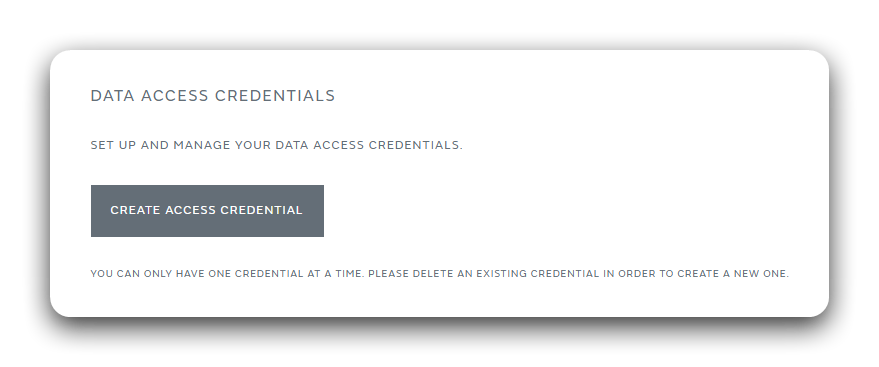
The client wizard then walks you through the following steps:
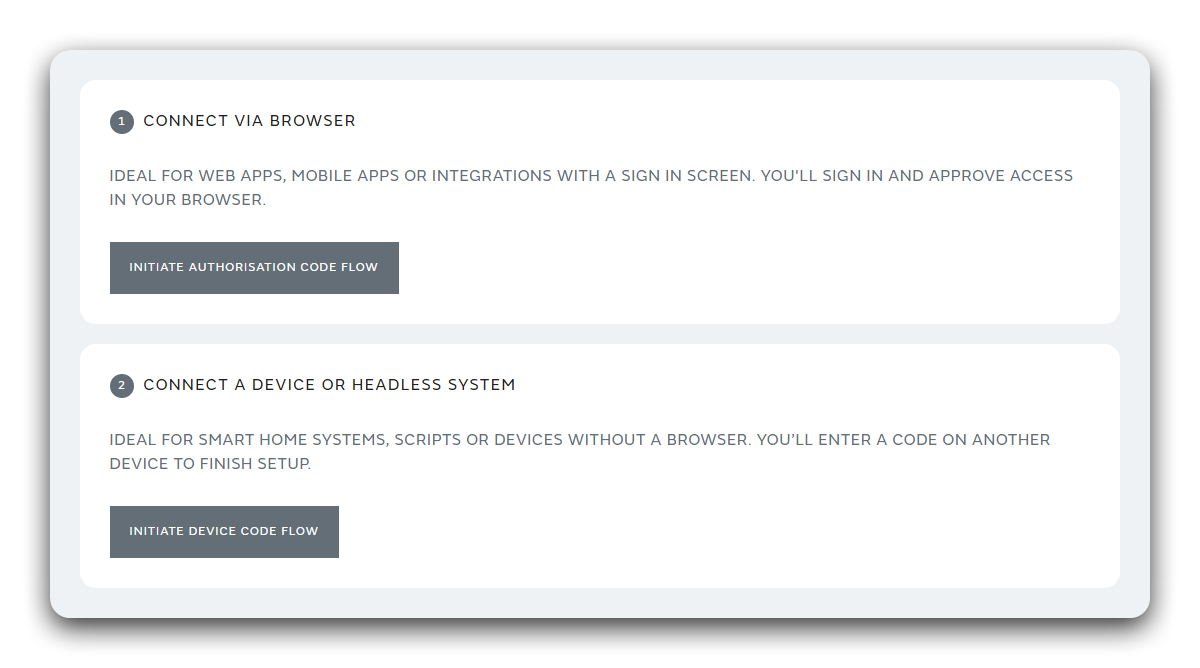
1a. Choose the credential type
Choose how this client will authenticate its users:
- Browser-based - uses the Authorization Code flow. Pick this for apps that can open a browser for login.
- Device-based - uses the Device Code flow. Pick this for input-constrained devices that show a code to approve in another browser.
Your choice determines which authentication flow the client uses in Step 3.
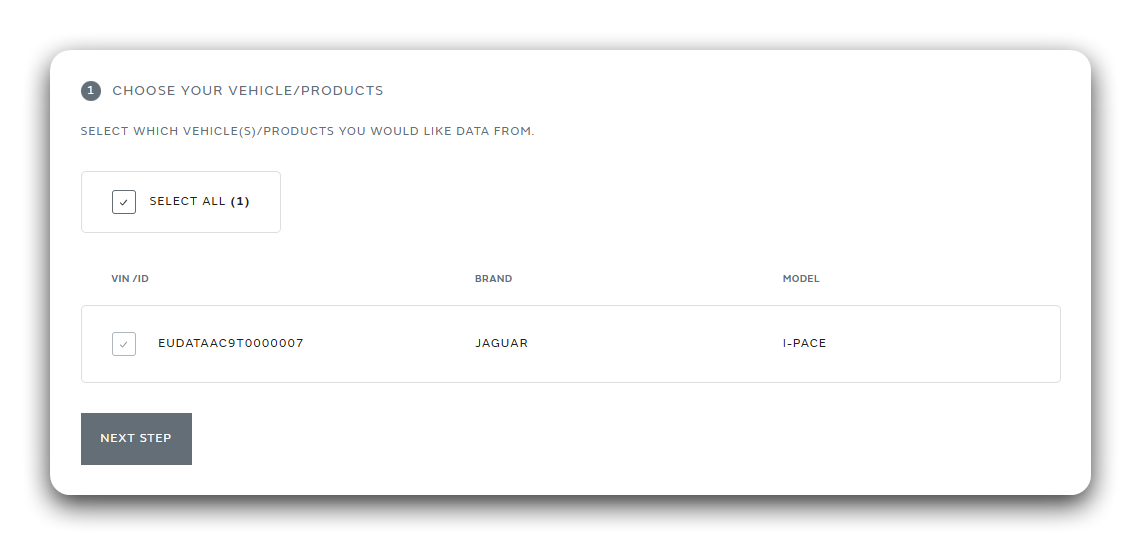
1b. Select the vehicles
Choose the vehicle(s) - by VIN - that this client may access. Only vehicles mapped to your account are listed. The client can never access a vehicle you did not select here.
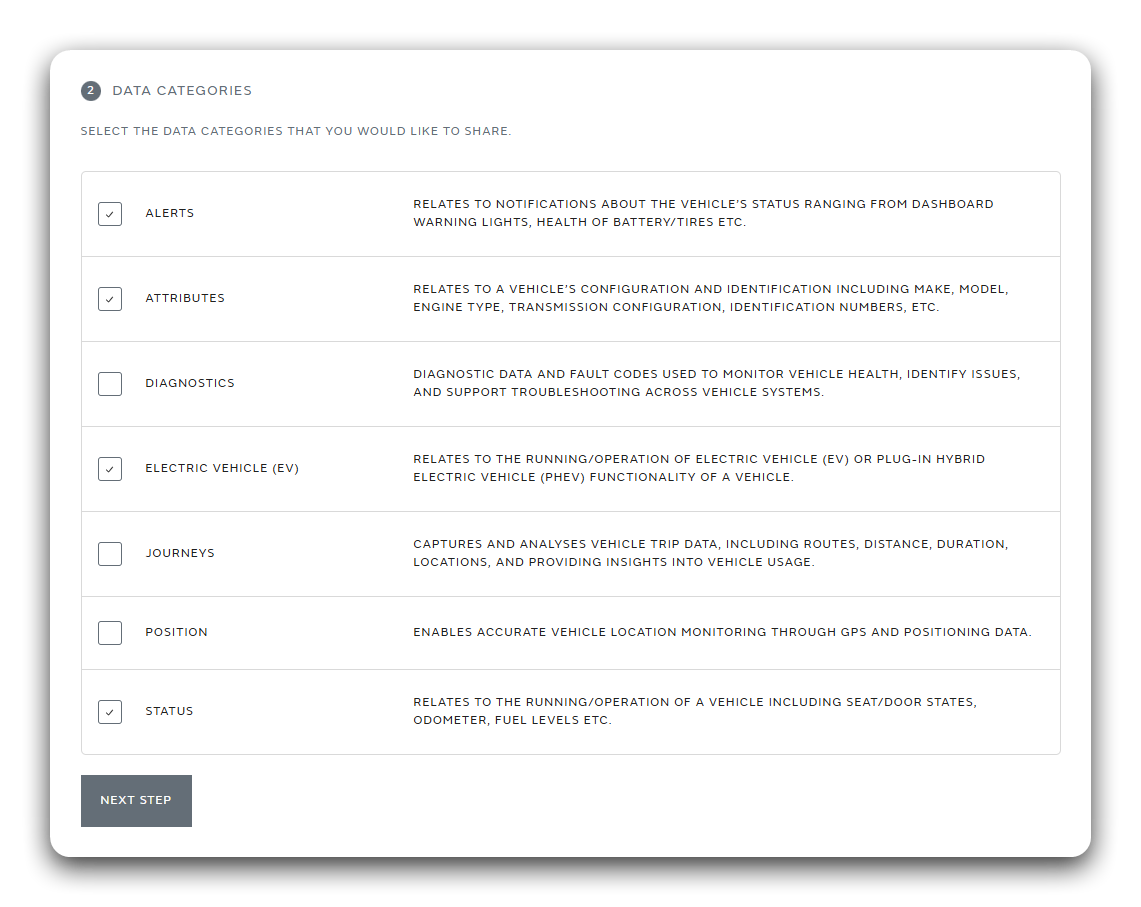
1c. Select the data categories
Choose which categories of data the client may read (for example vehicle status, location, EV/charging, diagnostics). This is what the consent screen will show you at login, and it defines the client's access - there are no scopes to request at authentication time.
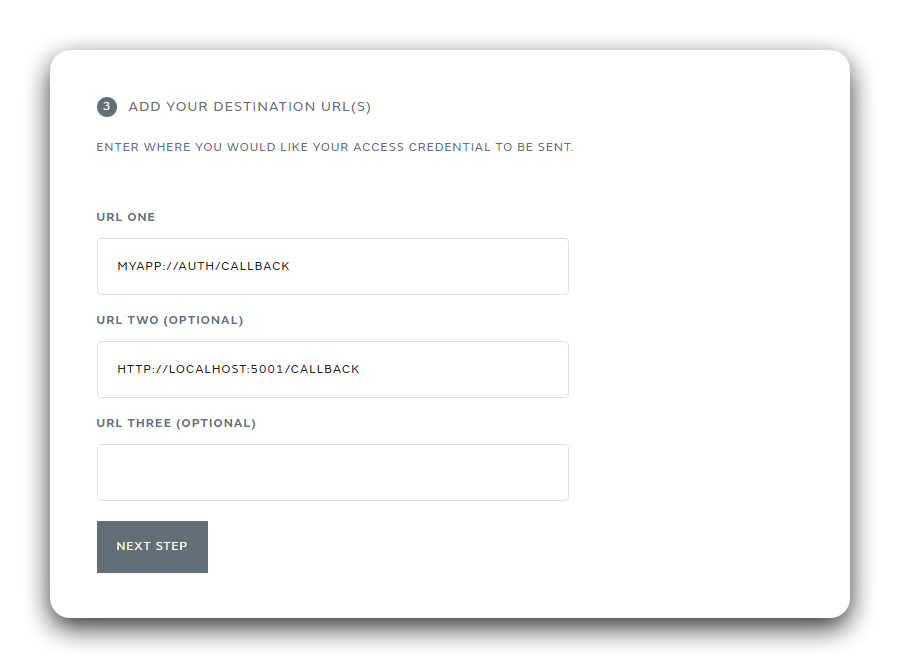
1d. Set the callback URI
The callback URI applies to the browser-based credential type only. If you chose
browser-based in Step 1a, enter the callback
(redirect) URI the authorization flow returns to. It must exactly match the
redirect_uri you send in the
Authorization Code flow.
The Device Code flow has no browser redirect, so there is no callback URI to set. If you chose the device-based credential type, skip this step and continue to the public certificate.
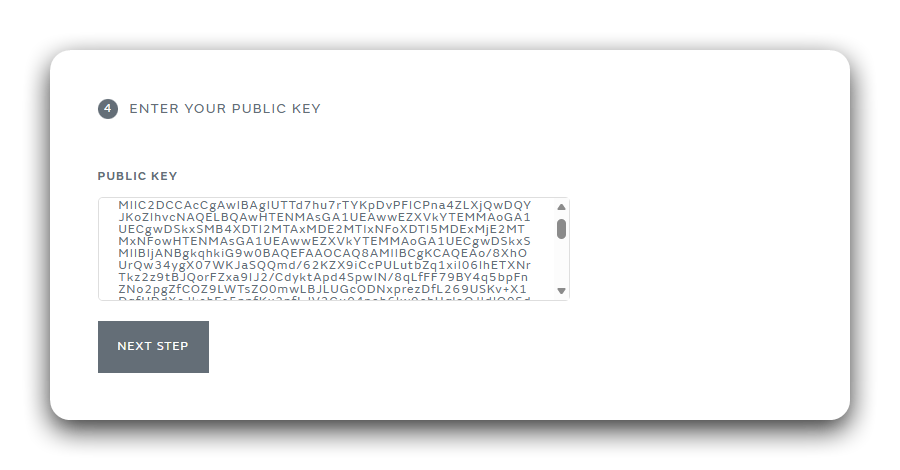
1e. Upload your public certificate
Upload the public certificate for the key pair you will use to sign your client assertion. The platform verifies every token request against this certificate. Keep the matching private key secure - it never leaves your backend, and there is no client secret.
Only the public certificate is uploaded. Never share your private key - keep it secure and treat it like a password.
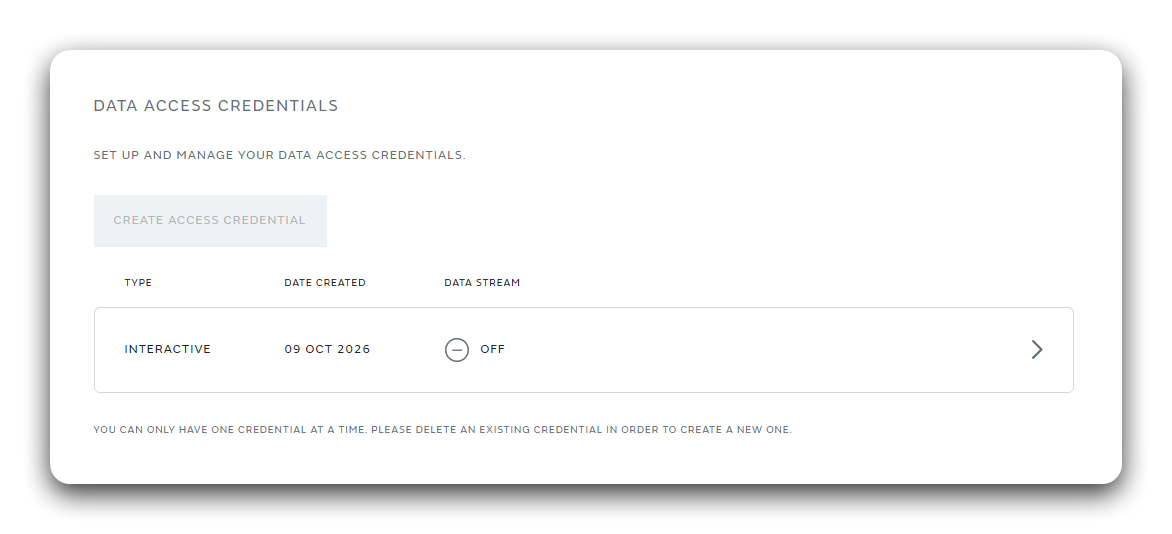
Step 2: View your credentials
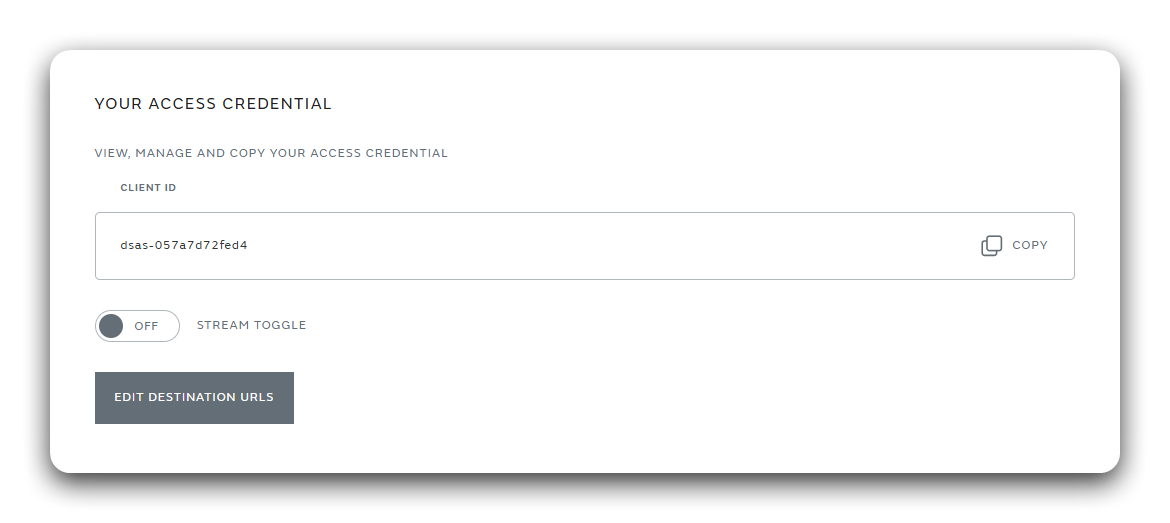
Once created, your credentials are visible in the portal. The credentials list shows every client you have created, with its key details at a glance.
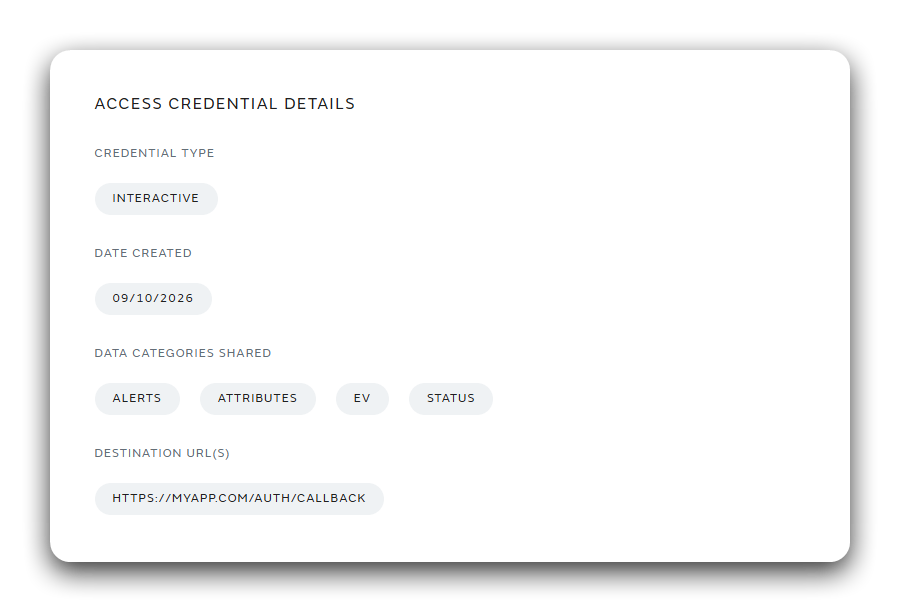
Select a credential to open its overview page, where you can review its full configuration - the credential type, selected vehicles, data categories, callback URI, and certificate details.
Step 3: Authenticate
First sign your client assertion with the private key matching the certificate you uploaded. Then choose the flow that fits your device:
- On a device with a browser → Authorization Code flow. Log in, approve the data categories, and exchange the code for tokens.
- On an input-constrained device → Device Code flow. Enter a short code from another browser to authorise.
For streaming, obtain a client-credentials token.
Step 4: Access your data
- REST API - Call endpoints with
Authorization: DPoP <access_token>and a fresh DPoP proof per request. Start with the REST API guide or the Quickstart. - Streaming - Configure a stream in the portal, then connect an MQTT client using your token as the password. Follow the Streaming guide.
Keep your session alive by refreshing tokens before they expire - see Tokens & Refresh.